
Call the VpnHood! MANAGER API
VpnHood! MANAGER runs your VPN servers and gives out the access keys people connect with. Its panel is built on a REST
API at https://api.vpnhood.com, and your code can call the same API: give each customer an access key from your
billing system, add servers from a script, or read usage into your own reports.
What a project holds
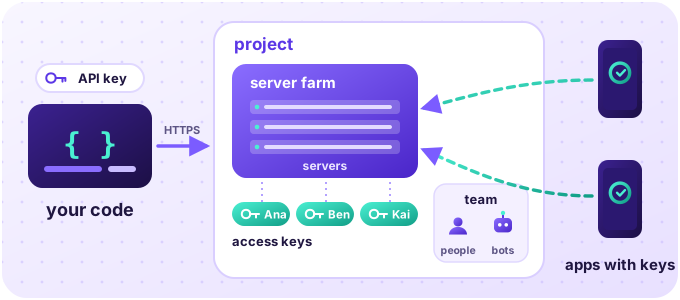
Everything belongs to a project, the one whose id is in your panel's address. A server farm groups the servers that apps reach as one. An access key belongs to a farm: an app that has it connects to the farm's servers, within the limits of the key's access key profile. The project's team holds the people and the bots that work on it, each with a role.
Get an API key
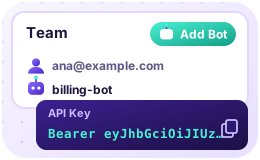 Add a bot In the panel, open Settings, select Team, then Add Bot, and name the bot. The panel shows
its API key once, as the value of an
Authorizationheader: copy it. Keep it as a secret, as anyone who has it acts as the bot; if it leaks, reset it on the bot's page.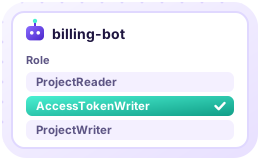 Give it a role The bot joins as
ProjectReader, which only reads. Open its page and give it the role its work needs:AccessTokenWritergives out access keys, andProjectWriteradds and installs servers too.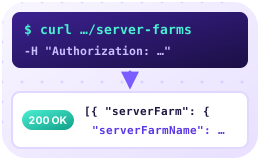 Call the API Send the key in the
Authorizationheader of every request. Each operation in the reference says which permission it needs, and which roles have it.
The examples below keep the key, as the panel shows it, in VH_API_KEY, and your project's id in PROJECT_ID.
Give a customer an access key
These are the requests a billing system makes once a server runs in your farm, as Add a server shows in the panel: it finds the farm and the profile once, then makes a key for each customer and sends it to them.
Find your server farm
A new project has one farm, and every key belongs to a farm.
curl "https://api.vpnhood.com/api/projects/$PROJECT_ID/server-farms" \
  -H "Authorization: $VH_API_KEY"
The answer:
[
  {
    "serverFarm": {
      "serverFarmId": "01a1e6f7-fa6c-7d9e-afd3-28253c41f135",
      "serverFarmName": "Server Farm 1",
      "serverProfileName": "(Default)"
    }
  }
]
Keep its serverFarmId as FARM_ID.
Choose an access key profile
A profile sets the limits of the keys made from it: how many devices, how much traffic, and for how long. A new project has two: a public one, for a free key that anyone may share, and a private one, for a premium key that one customer uses on a few devices.
curl "https://api.vpnhood.com/api/projects/$PROJECT_ID/access-token-profiles" \
  -H "Authorization: $VH_API_KEY"
The answer:
[
  {
    "accessTokenProfileId": "2",
    "accessTokenProfileName": "Private Profile",
    "isPublic": false,
    "maxTotalTrafficMb": null,
    "lifetime": 0,
    "maxDevice": 5
  },
  {
    "accessTokenProfileId": "1",
    "accessTokenProfileName": "Public Profile",
    "isPublic": true,
    "maxTotalTrafficMb": null,
    "lifetime": 0,
    "maxDevice": 0
  }
]
Keep the private profile's accessTokenProfileId as PROFILE_ID.
Create the key
accessTokenName is the name the panel shows, and customerId, with orderId and shopId, keeps your billing
system's ids with the key, so you can find it again.
curl -X POST "https://api.vpnhood.com/api/projects/$PROJECT_ID/access-tokens" \
  -H "Authorization: $VH_API_KEY" \
  -H "Content-Type: application/json" \
  -d @- <<EOF
{
  "serverFarmId": "$FARM_ID",
  "accessTokenProfileId": "$PROFILE_ID",
  "accessTokenName": "Customer 1001",
  "customerId": "1001"
}
EOF
The answer:
[
  {
    "accessTokenId": "01a1e6f8-020d-70cc-b229-83562271e457",
    "accessTokenName": "Customer 1001",
    "accessTokenProfileName": "Private Profile",
    "supportCode": 1002,
    "serverFarmName": "Server Farm 1",
    "expirationTime": null,
    "isEnabled": true,
    "customerId": "1001"
  }
]
The answer is a list, as one request can make many keys with count. Keep the key's accessTokenId as KEY_ID.
Send the customer their key
curl "https://api.vpnhood.com/api/projects/$PROJECT_ID/access-tokens/$KEY_ID/access-key" \
  -H "Authorization: $VH_API_KEY"
The answer:
"vh:eyJ2Ijo0LCJuYW1lIjoiQ3VzdG9tZXIgMTAwMSIsInNpZCI6IjEwMDIiL…"
That is the access key itself: the text the customer pastes into a VpnHood app, or into your own app built on VpnHood.
Read its usage
usageBeginTime starts the period it counts, in UTC; here it is SINCE. The free plan's report goes back 33 days at
most.
curl "https://api.vpnhood.com/api/projects/$PROJECT_ID/access-tokens/$KEY_ID?usageBeginTime=$SINCE" \
  -H "Authorization: $VH_API_KEY"
The answer:
{
  "accessToken": {
    "accessTokenId": "01a1e6f8-020d-70cc-b229-83562271e457",
    "firstUsedTime": "2026-11-17T00:46:16Z",
    "lastUsedTime": "2026-11-17T00:46:16Z",
    "isEnabled": true
  },
  "usage": {
    "sentTraffic": 52000000,
    "receivedTraffic": 840000000,
    "deviceCount": 1
  }
}
Stop it
When the customer stops paying, disable the key: the app can no longer connect with it, and tells the customer to
contact your support. An update sends only the fields it changes, each as { "value": ... }.
curl -X PATCH "https://api.vpnhood.com/api/projects/$PROJECT_ID/access-tokens/$KEY_ID" \
  -H "Authorization: $VH_API_KEY" \
  -H "Content-Type: application/json" \
  -d @- <<EOF
{
  "isEnabled": { "value": false }
}
EOF
Go further
- The reference has every operation, its parameters and fields, and the permission it needs.
- openapi.json is the API's description in OpenAPI 3.1: give it to a code generator for a client in your language, or to an AI agent that calls the API for you.
- The panel's roles page says what each role may do.